

Click Here to Register Online Now
Our software looks at your computer hardware and generates
a unique "Computer Code" for each computer that it is installed
on.
This information is then used by our online Registration System
to create a unique "Registration Code" for that computer.
Therefore, if you purchase a new computer or replace some computer
hardware you will need to reregister your software online to
generate a new "Registration Code".
Both the demo version and the licensed version of our software are the same downloads.
So if you had the demo version installed once you purchase the
software all you need to do is to hit the "Register Online"
button to use the Online Registration System or follow the instructions
on this page to register your software.
This page is broken into 3 sections:
Common Frequently Asked Questions:
Online Registration
Manual Registration
Common Frequently Asked Questions:
1.) Why to I get a message about
trying to use a newer version than my maintenance allows
2.) Why is the software displaying the Registration Screen even though I am a registered user?
- If you installed a newer version of the software then you may have to reregister the software online. Occasionally we do have to modify our Registration Codes or you may have purchased yearly maintenance that the older version did not know about.
- If you changed hardware in your existing computer it will likely generate a new Computer Code and you will have to reregister your software.
- If you installed the software on a different computer then you will need to register the software online.
- Please try running the C:\Program Files (x86)\AcroPlot\CADzWebReg.exe by browsing to it in the Windows Explorer and then right clicking on the name and doing the "Run As Administrator" Option to make sure that it registers the software for all users on the computer.
3.) Why do I still see the Click to buy NOW watermarks after I registered the software?
- If for some reason the PDF-XChange for AcroPlot Pro
printer driver is not registered properly it will add watermarks
in the upper corners that look like this.

- If you registered the AcroPlot Suite without using Administrator rights then it may not have registered the driver for all users on that machine. The PDF-XChange for AcroPlot Pro printer driver saves the registry key under both the Current User and the Local Machine in the Windows Registry. Typically the best way to fix this is to go to the Windows Start->All Programs->AcroPlot and then right click on the "Register Software" and do the Run As Administrator (More->Run As Administrator in Windows 10) option and reregister your software. You can also try running the C:\Program Files (x86)\AcroPlot\CADzWebReg.exe by browsing to it in the Windows Explorer and then right clicking on the name and doing the "Run As Administrator" Option. This should properly register the software and printer driver for all users on the machine.
- If you are running AcroPlot Suite in evaluation mode it will add the watermarks. In evaluation mode we do not allow use of the printer driver directly without a watermark. Only when converting directly through our AcroPlot Pro program will we remove the watermarks during your 30 day evaluation trial.
- If you purchased and registered AcroPlot only and not the AcroPlot Suite then we will add the watermarks. AcroPlot users do NOT have the ability to print directly to the the PDF-XChange for AcroPlot Pro printer driver. Only AcroPlot Suite (formerly AcroPlot Pro) users are allowed to do that. You can upgrade your product to AcroPlot Suite by logging into your account. Then you can select the AcroPlot licenses you would like to upgrade and hit the Purchase Maintenance button. This will then give you an option to upgrade the licene(s) to AcroPlot Suite.
4.) I have lost my hard drive and I need to reinstall AcroPlot. How do I do this?
- First log into your account in the upper right of our website.
- Then locate the software in your list which you would like to install and use the Download link to make sure that you get the latest version of the software for which your maintenance has been valid through.
- If you are not current on your maintenance you can purchase it at this time to download and register the latest version.
- After installing and rebooting your computer run the software and a Registration Splash Screen will appear.
- Use the "Register Online" button to user our Online Registration System to register the software.
- After logging in on the Online Registration System it will likely provide you a list of the software that you own and you can select which license you would like to replace.
5.) I have just received a new computer. How do I go about installing the software on the new computer?
- We trust our users so there is no step to unregister the old version with us.
- But you legally must uninstall the software from the old computer before giving to to another person to use once you install the software on a different computer.
- Follow F.A.Q. #4 above to download and register the proper version of your software on the new machine.
- If you would like to move your Saved Settings and such over you can copy the files from the C:\Users\[YOURUSERNAME]\AppData\Roaming\CADzation\ folder on the old machine to the new machine.
6.) Can I Install a Second Copy of the Software on say a laptop used by the same user?
- If you purchased a single User, 5 User, or 10 User license where you have to register each individual license then you may install a second copy on say a laptop provided that you are the sole user of both machines and both machines are either owned by yourself or owned by the company.
- If you purchased a 25 User or more user license then you may only have that number of licenses installed at any given time.
- Follow F.A.Q. #4 above to download and register the proper version of your software.
THINGS YOU CANNOT DO
- Install it on a shared computer that is used by more than 1 person and then install it on a second laptop or another computer.
- Install it on two users computers even if both users are not going to be using the software at the same time.
- Install it on a computer owned by the company and then install it at home on your own personal computer. Since the company owns the software it can only be installed on another computer owned by the company.
- Install it on a server or Citrix type of system where multiple users access the software. In this case you would need a license for each user that uses the software since each of their remote sessions counts as a virtual "Computer"
7.) We have several licenses of your software. How do we go about unregistering a specific "Computer Code" to reregister it on a new computer?
- Our system will automatically use any unused licesnese on your account when you try to register a new install of our software. If you have used up all of your licenses you can use the standard "Register Online" button from the splash screen and it will then provide you a list of your software and allow you to pick which license you would like to replace.
- If you have not used up all of your licenses or would like more control over which license is used you can log into your account in the upper right hand corner of our site and manually select which license you would like to register. Select the Register button next to it and fill in the required information. After you register it you can copy and paste the "Registration Code" into the "Manual Registration" tab of the CADzation Registration program.
8.) Why can I not change the "Computer Code" to match my original one?
- The "Compute Code" cannot be edited. It is determined based on the hardware of your computer and is typically unique for each and every computer.
- If your software is showing a different computer code simply use the "Register Online" button to reregister your software.
9.) What do I do if I do not know my password?
- Click on the "Customer Login" in the upper right hand corner of our website.
- Then hit the "Email Me My Password" and it will resend the password to your email address if it finds you in our database.
- Please allow 5 to 10 minutes for the email to arrive.
- If it does not arrive please add cadzation.com to your email whitelist or contact our sales by phone at 847-973-9460.
10.) Why does the registration below tell me that it cannot find my email address?
- Each order can only be associated with one email address.
- It may be that the purchasing agent used their email instead of yours if they placed the order online or that it is under an old email or another users email at your company.
- Please visit our manual registration page at https://www.cadzation.com/login/contactlogin.aspx and enter in as much information as you can so we can find the order in our database.
- Another cause may be if you have 25 or more users.
- For 25 or more users you do not have to register each computer.
- You were provided with a Common Registration Code at the time of purchase.
- If you no longer have this code please visit our manual registration page at https://www.cadzation.com/login/contactlogin.aspx and enter in as much information as you can so we can find the order in our database.
11.) When I try to register my product it tell me that "The database did not find software for:"?
- This means that you are trying to register for a software product that you do not own.
- For AcroPlot Jr., AcroPlot, and AcroPlot Pro try picking one of the other selections as you are probably trying to register AcroPlot Pro when you really only own AcroPlot.
If you have any additional questions please feel free to contact us on our online support and helpdesk at:
https://www.cadzation.com/support.htm
Online Registration
Our software looks at your computer hardware and generates
a unique Computer Code for each computer that it is installed
on. This information is used to create a unique Registration
Code for that computer. Therefore, if you purchase a new
computer or replace some computer hardware you will need to
reregister your software.
Both the demo version and the licensed version of our software
are the same. So if you had the demo version installed
once you purchase the software all you need to do is to hit
the "Register Online" button on the splash screen to use the
built-in registration or follow the instructions on this page.
This will startup our online registration program and will connect
to our webserver. It should load the webpage and it may take
30 seconds or so. If it does not connect to the Webpage then
you will want to scroll down to the Manual Registration section
below.
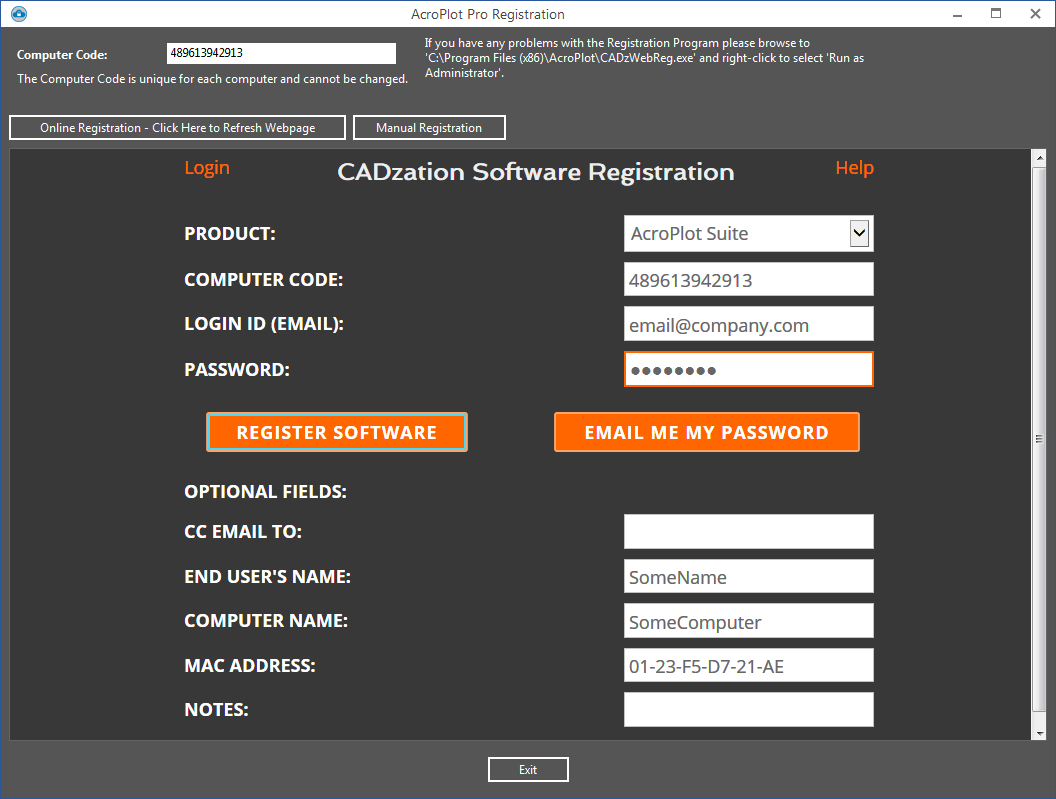
Once it connects up select the product that you purchased.
It should have automatically filled in your Computer Code from
above. EXISTING USERS DO NOT TRY TO CHANGE
THIS TO YOUR OLD COMPUTER CODE! The Computer Code
is unique to every computer and you cannot change it.
Enter in the email that you purchased the software under and
your login password. If you do not remember your password
then just hit the "Resend Password" button to the right after
you have entered in your email and we will email it to you.
If your email address is not found then you will have to contact
our sales at sales@cadzation.com
or even better please open up a new ticket on the support system
at www.cadzation.com/support.htm
Once you have entered in your information hit the "Authorize
Software" button and it should authorize and register the software
and tell you that it was successful.
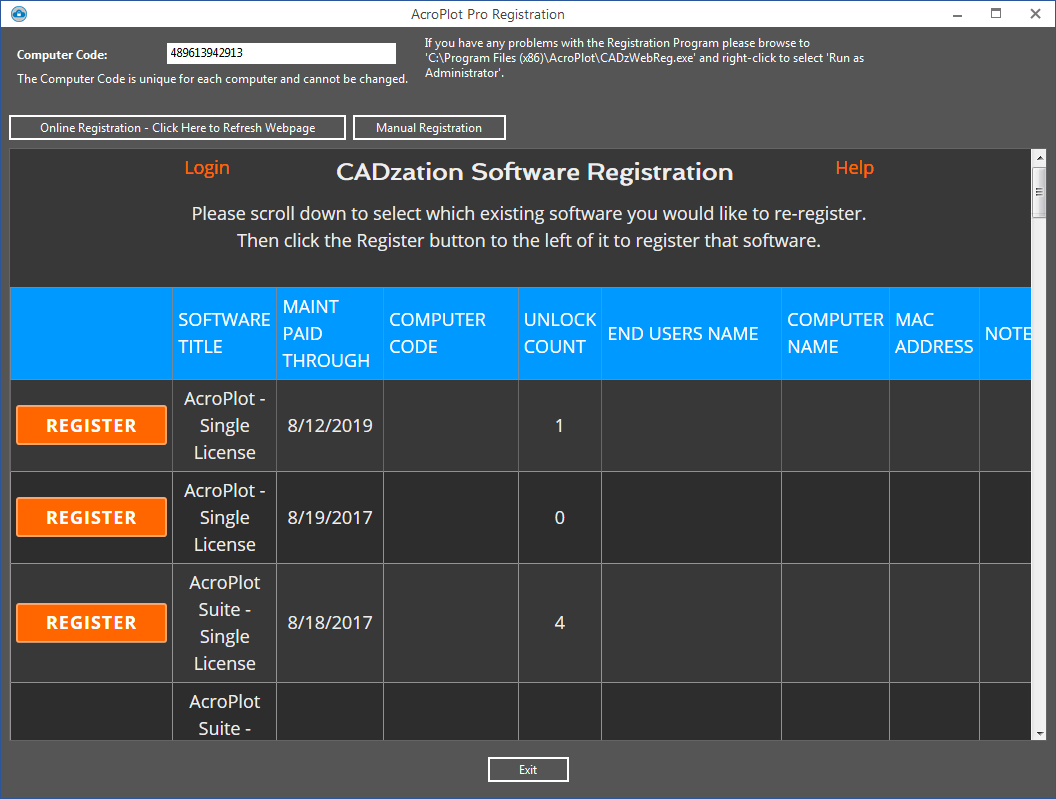
If you have previously registered your software you will
be taken to the following screen to select which software license
you would like to Reregister. Simply select the appropriate
one in the list and click on the Register button to reregister
the software license.
Manual Registration
If you have problems connecting to the online registration
you can manually register the software also.
To do this either hit the "Register Online" button on the splash
screen or if the program is running use the "Help->Register
Software" menus.
This will startup our online registration program and just
click on the "Manual Registration" Tab.
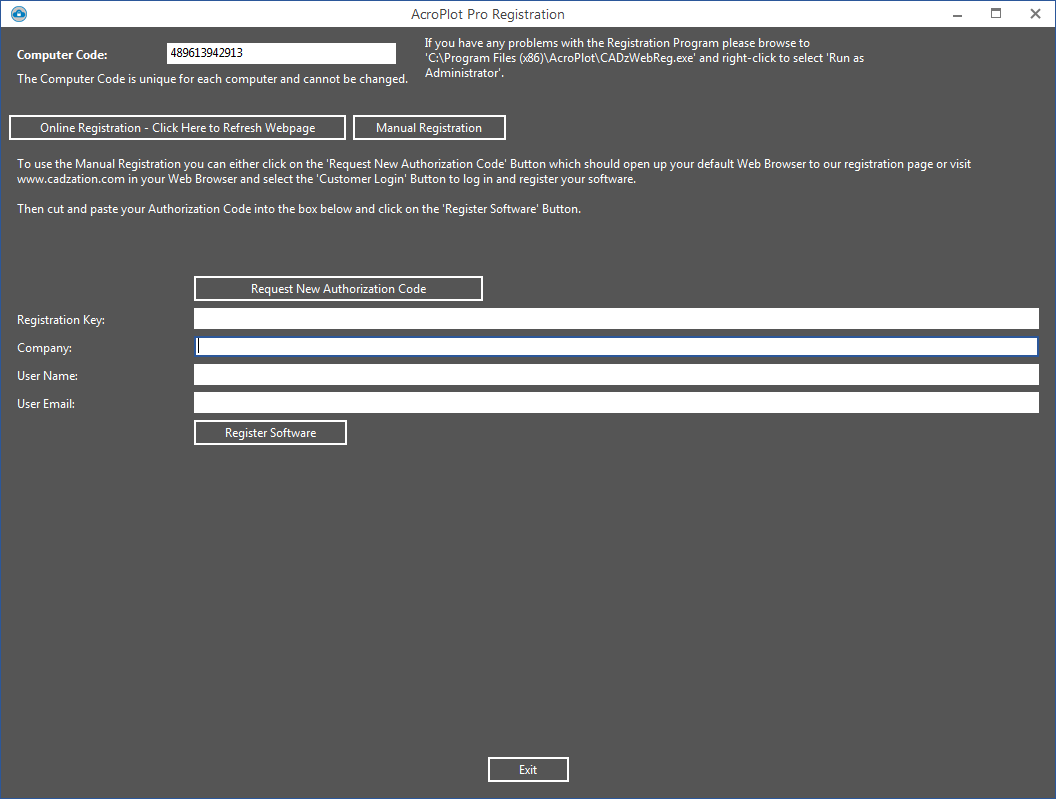
You will then want to highlight the Computer Code and do a CTRL+C
to copy it to the clipboard. EXISTING
USERS DO NOT TRY TO CHANGE THIS TO YOUR OLD COMPUTER CODE!
The Computer Code is unique to every computer and
you cannot change it.
Next open your internet browser of choice and visit
www.cadzation.com and
in the upper right hand corner will be a Customer Login that
you can click on. Enter in the email that you purchased
the software under and your login password. If you do
not remember your password then just hit the "Resend Password"
button to the right after you have entered in your email and
we will email it to you. If your email address is not
found then you will have to open up a new ticket on the support
system at www.cadzation.com/support.htm
Please provide us with as much information as possible about
the original order so we can track it down.
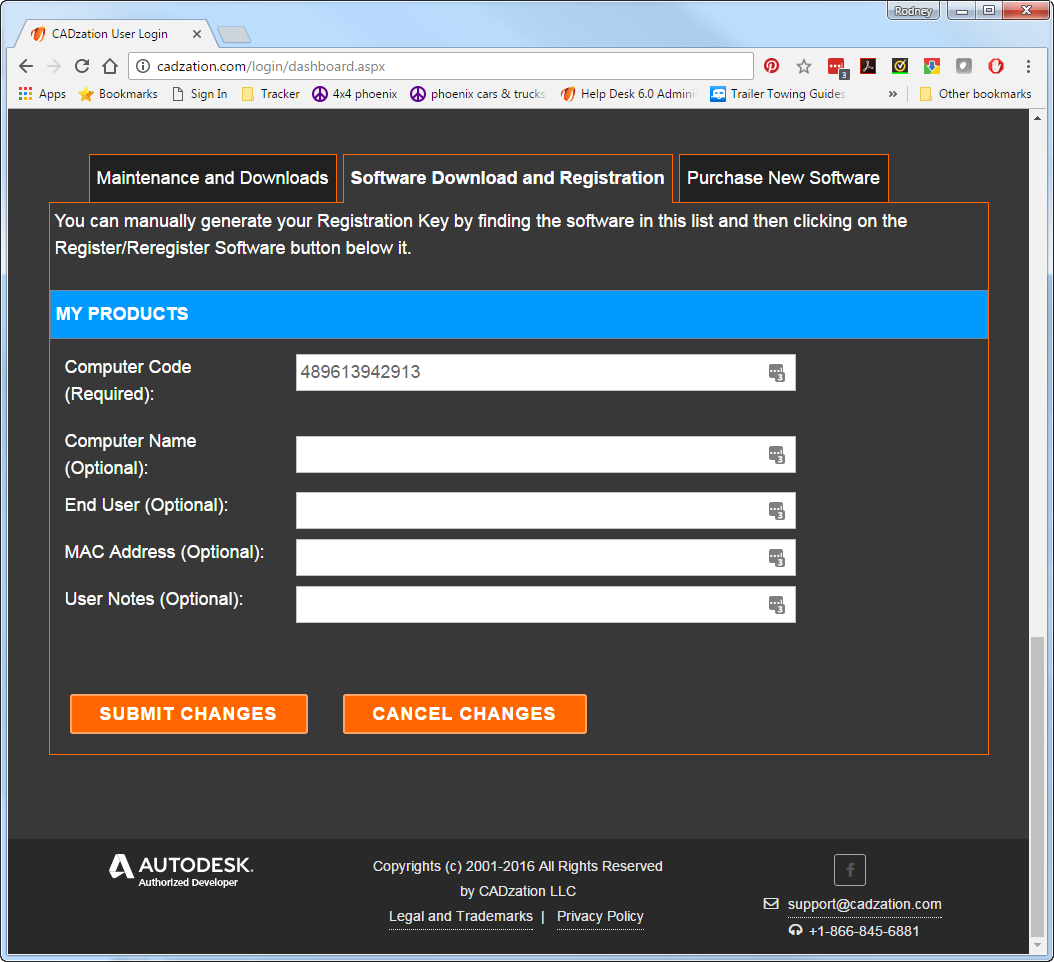
After you have logged in at the bottom of the page it will list the software that you own. From there you can click on the Register Software Tab and find the software you would like to register. Then click on the Register/Reregister Button.
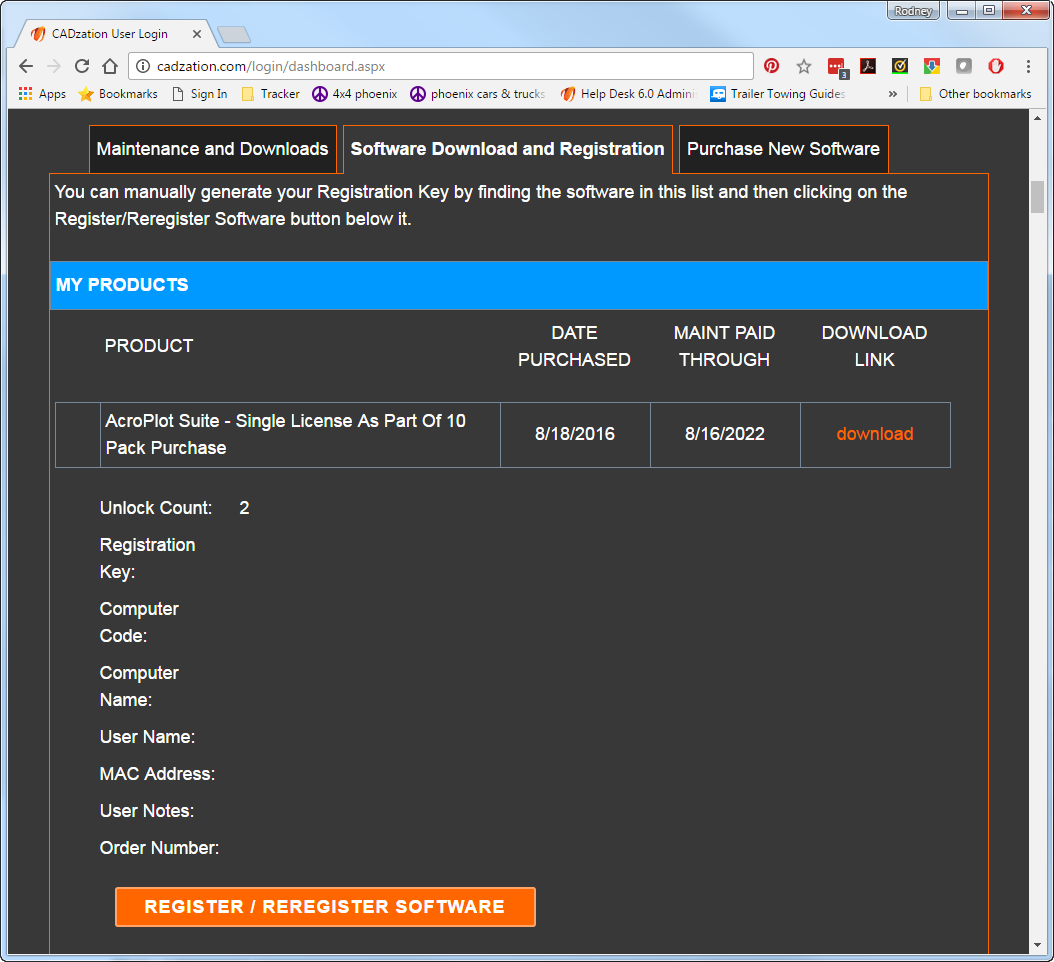
Now you can use Ctrl+P to paste in the Computer Code which you have copied from the manual registration program into the Computer Code box on the website. Once you have entered in the optional information for that software hit the "Submit Changes" button and it should generate the Registration Key for the software.
It will then take you back to the Register Software Tab and you can highlight and copy the Registration Key text using Ctrl+C. Simply copy the Registration Key text over to the Manual Registration window and paste it into the Registration Key box using Ctrl+P and hit "Register Software" button and you should be set.